Changing your Mac password regularly is important for maintaining the security of your device and data. Whether you're using a personal or work Mac, updating your password is a quick and easy process. This guide will walk you through how to change your password on macOS.
Step-by-Step: Change Your Apple Mac Password
Open System Settings
On the top-left corner of your screen, click on the Apple menu (Apple icon), then select System Settings (or System Preferences in older versions of macOS).
Go to Users & Groups
In the System Settings/Preferences window, click on Users & Groups. This will display all the users on your Mac.
Select Your Account
In the left sidebar, find and select your account name (it should already be highlighted if you're logged in). Then, click the Change Password button.
Enter Your Current Password
You will be prompted to enter your current password for security purposes.
Set a New Password
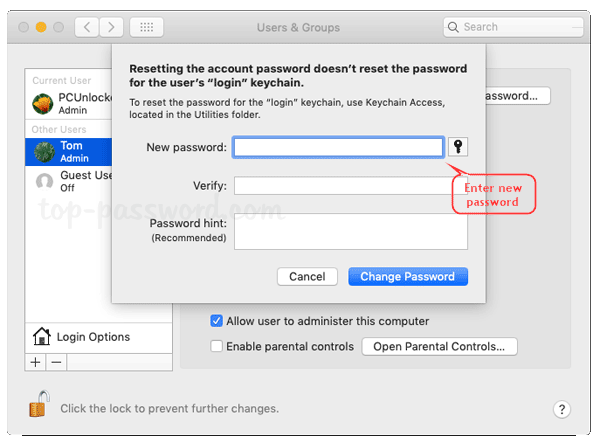
Enter your new password, confirm it by typing it again, and create a password hint to help you remember it if needed.
Save the Changes
Click Change Password to apply your new password. The next time you log in, you will use your updated password.
Bonus Tip: Secure Your Mac Further
For additional security, you may want to enable Touch ID (if your Mac supports it) or set up a password reset feature using your Apple ID. These options can be found under the Security & Privacy section in System Settings.
Changing Your Mac Password: A Summary
- Go to System Settings > Users & Groups.
- Select your account and click Change Password.
- Enter your current password.
- Create a new password and confirm it.
- Click Change Password to save.
Regularly changing your Mac password helps keep your data secure. By following this guide, you can easily update your credentials and enhance your device’s security.


